
This members-only tutorial provides the steps to show a cookie consent information bar without using a plugin or loading a 3rd party JS file in Oxygen.
We shall use the Modal and Conditions features with a few lines of custom JS.
When a user visits any page of the site for the first time, the modal is going to slide in from the bottom after a minute.
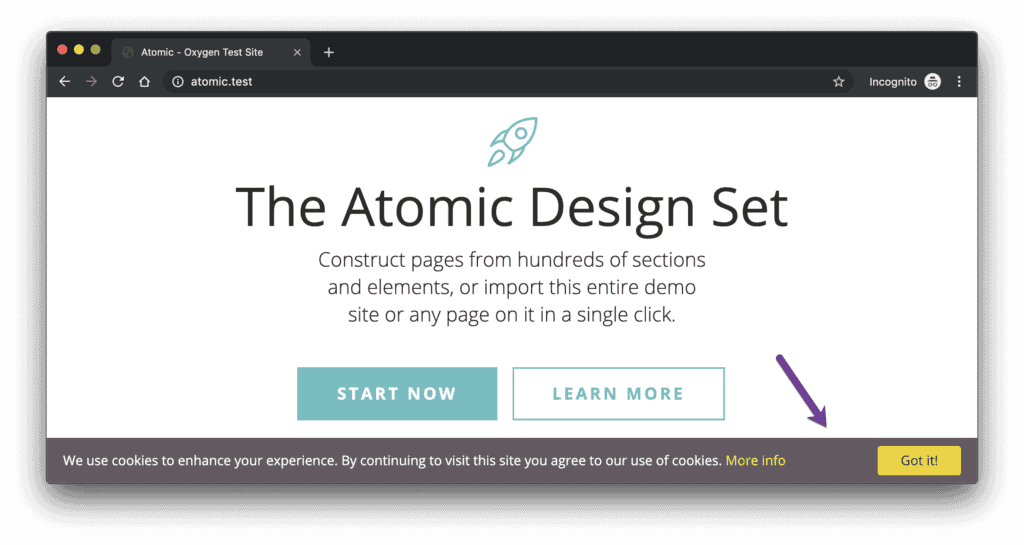
When the user dismisses it by pressing the "Got it!" button, a cookie will be created in the user's browser that expires after 30 days.
During this time any time this user revisits any page of the site, the cookie we created will be checked against the list of cookies and only if it is NOT present will the modal appear.
Here's the idea behind the implementation:
if button pressed { create cookie }
if cookie NOT present in the cookies list { show the modal }
Step 1
Edit the Main Catch All Oxygen Template.
a) Add a Modal component.
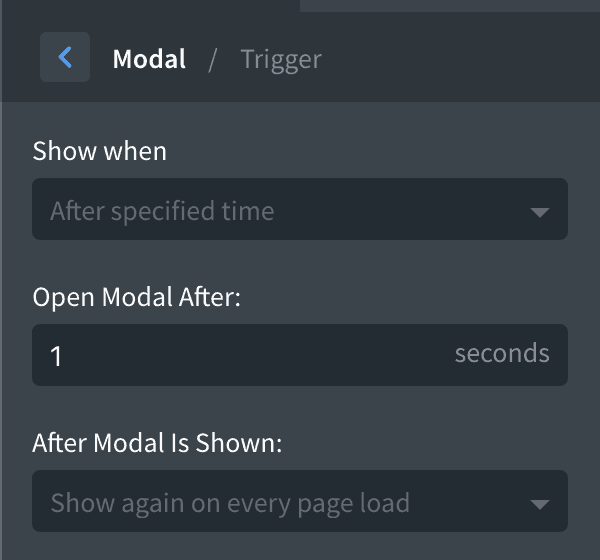
Trigger
Show when: After specified timeOpen Modal After: 1 secondAfter Modal Is Shown: Show again on every page load
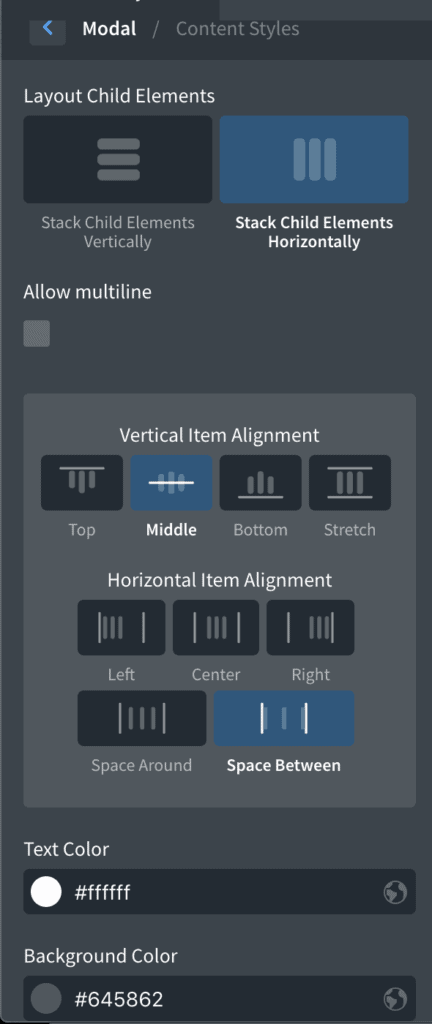
Content Styles
Layout Child Elements: Stack Child Elements HorizontallyVertical Item Alignment: MiddleHorizontal Item Alignment: Space BetweenText Color: #ffffffBackground Color: #645862
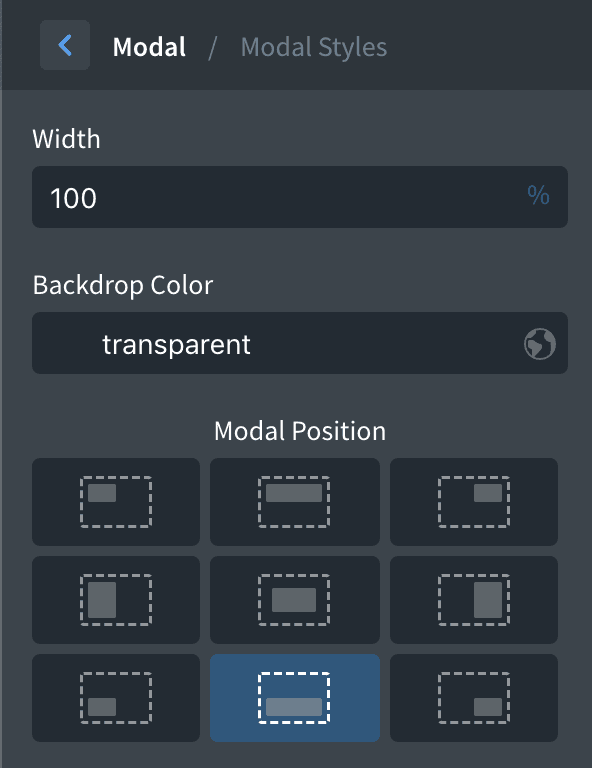
Modal Styles
Width: 100%Backdrop Color: transparentModal Position: (bottom center)
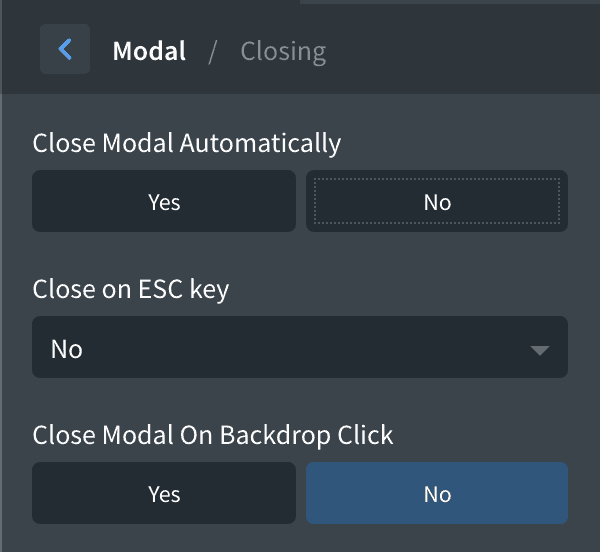
Closing
Close on ESC Key: NoClose Modal On Backdrop Click: No
Advanced > Size & Spacing
Padding: 10px at top and bottom and 20px at left and rightWidth: 100%
Advanced > Effects
Animate on Scroll: Enable animation and set animation type to slide-up.
With the Modal selected, add a Text component.
Enter this sample text:
We use cookies to enhance your experience. By continuing to visit this site you agree to our use of cookies. More info
Select "More info" text and click <SPAN> button in the top toolbar and set a URL to it that links to your Privacy Policy page or to http://wikipedia.org/wiki/HTTP_cookie.
With the Modal selected, add a Button component.
Change the text to something like "Got it!" or "Accept".
Button Color: #f1d600Button Hover Color: #f0d032Text Color: #333333
Advanced > Size & Spacing
Padding: 4px at top and bottom and 20px at left and rightMargin: 40px at leftWidth: 100%Max-width: 100px (adjust according to the button text)
Let's make responsive adjustments. Select "Less than 768px" breakpoint.
Modal / Content Styles: Stack Child Elements Vertically.
For the Text component, set Text Align to Center under Typography.
For the Button, set top margin to 20px and left margin to 0.
b) Bring up the Structure Panel, select Body element and add a Code Block so it is below all other components.
PHP & HTML
<?php
	// echo "hello world!";
?>
CSS